Why You Should Never Install Software Without Looking: A Beginner’s Guide to Safe Downloads
Why You Should Never Install Software Without Looking: A Beginner’s Guide to Safe Downloads
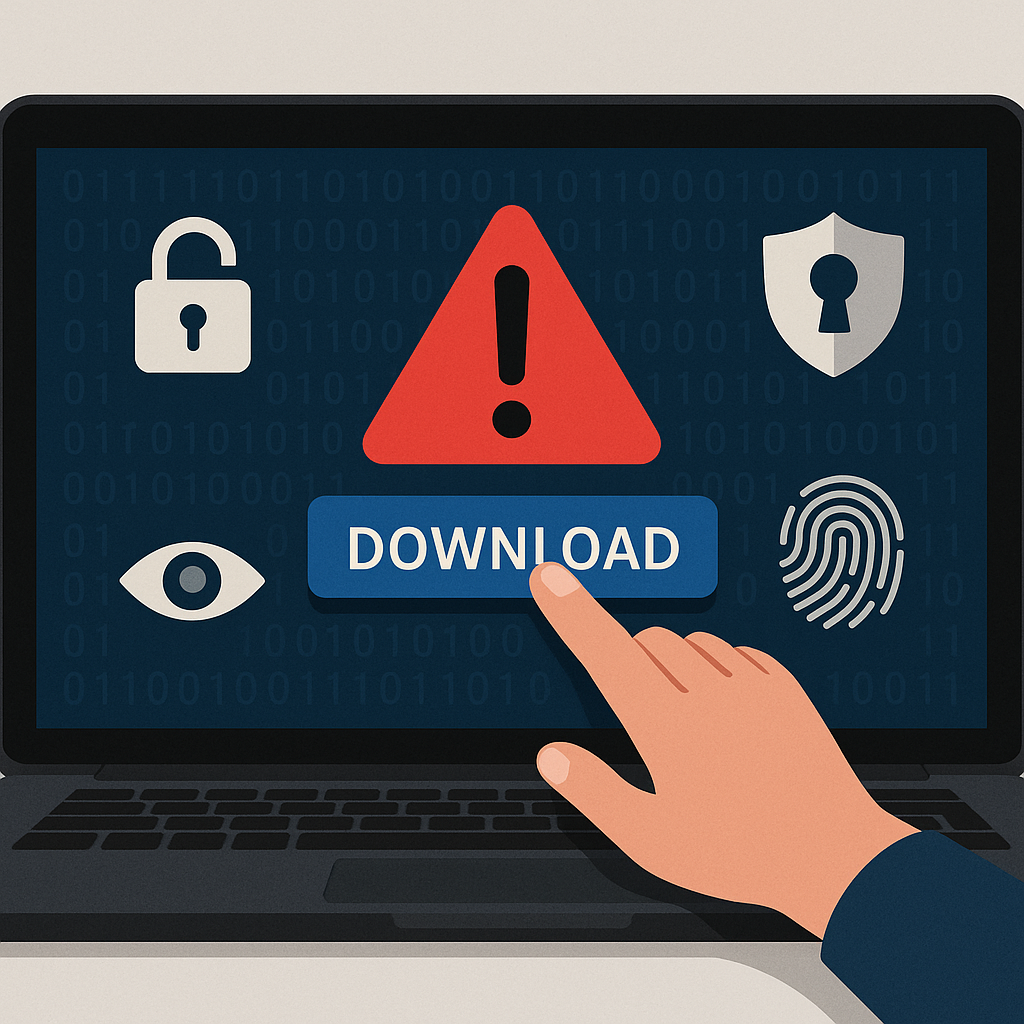
Most people click through software installation screens without reading a single word. Next, Next, Next, Install, Finish. This habit seems harmless until malicious software quietly grants itself admin access, sets itself to launch at startup, or installs bundled components that have nothing to do with the tool being downloaded. The reality is simple: every installation is a security decision, and blindly accepting defaults removes the one layer of defense that antivirus software cannot provide—human judgment.
Nation-state attackers have exploited this trust extensively. North Korean hacking groups have used fake job interviews and coding exercises to trick developers into installing malicious packages. These attacks succeed not because victims lack technical knowledge, but because they skip the one step that matters most: examining what they are about to install before giving it permission to run.
This guide provides practical, field-tested advice for students, early-career professionals, and anyone entering tech roles. The goal is not paranoia but informed decision-making. Understanding how to evaluate software before installation builds the foundation for every security habit that follows.
Understanding the Real Risks of Software Installation
Software installation is not a passive process. When an installer runs, it can modify the operating system, create new user accounts, add startup entries, open network connections, and request administrative privileges. Each of these actions expands the attack surface of the system.
The problem is not software itself. The problem is installing software without understanding what it does, who created it, and whether it needs the permissions it requests. Default installation paths hide this information behind a single button labeled “Install Now” or “Quick Setup.” Custom installation paths expose the same choices as individual steps, making it possible to review and reject unwanted components.
Attackers understand this pattern. Malicious actors bundle unwanted software inside legitimate-looking installers, rely on users accepting defaults, and use social engineering to make the installation feel urgent or necessary. Fake job opportunities, coding challenges, and recruiter messages have all been used to deliver malicious packages to developers who assumed the request was legitimate.
Why Default Installation Is Riskier Than Custom Installation
Default installation settings prioritize convenience over transparency. They automatically accept all bundled components, enable startup behavior, and grant the software maximum permissions without requiring user review. This approach works well for trustworthy software from verified publishers, but it creates risk when the source is unfamiliar or the software has not been vetted.
Custom installation reveals what default installation hides:
- Additional software bundled with the main application
- Startup and service registration settings
- Administrative privilege requests
- Browser modifications or toolbar installations
- Data collection or telemetry options
Choosing the custom or advanced installation option adds less than one minute to the process. In exchange, it provides visibility into every component being installed and the opportunity to reject anything unrelated to the software’s primary function.
Field experience confirms this approach. System administrators routinely choose custom installation when evaluating new tools, not because they distrust all software, but because they need to see what the software will do before granting it access. The same logic applies to individual users, students, and developers working on personal machines.
How to Safely Evaluate Software Before Installation
Safe software installation begins before the download. The evaluation process includes verifying the source, checking community reputation, and confirming that the software is necessary. These steps do not require advanced technical knowledge. They require consistent application of basic verification practices.
Verify the source. Download software only from the official publisher’s website or a trusted repository. Third-party download sites often bundle additional software or modify the original installer. Browser search results can be misleading, especially when sponsored ads place unofficial sources above legitimate ones. The safest approach is to navigate directly to the publisher’s website rather than clicking the first search result.
Check community reputation. Established software has a history of user reviews, developer activity, and public discussion. New or unfamiliar tools should be researched before installation. A lack of information is not necessarily suspicious, but it is a signal to proceed with caution. Tools used by large organizations, recommended in professional forums, or documented in educational resources carry lower risk than tools with no verifiable reputation.
Confirm necessity. The safest software to install is software that is never installed. Every tool added to a system increases complexity, expands the attack surface, and requires ongoing management. Before downloading anything, ask whether the task can be completed with existing tools or whether the new software solves a problem that actually exists. Unnecessary software is not just clutter—it is a potential vulnerability.
Scan before running. Antivirus software and online scanning services provide an additional verification layer. They are not foolproof, but they catch known threats and provide a baseline level of protection. Upload the installer to a service like VirusTotal before running it, or confirm that local antivirus software has scanned the file. This step takes seconds and can prevent obvious threats from executing.
What to Look for During the Installation Process
Once the installer begins, the custom installation path reveals several critical decision points. Each of these deserves attention, even when the software appears legitimate.
Administrative privilege requests. Software that requires administrator access should have a clear reason for needing it. System utilities, drivers, and tools that modify the operating system need elevated permissions. Casual productivity tools generally do not. When an installer requests admin access, consider whether the software’s function justifies the request. If the reason is unclear, the software may be overreaching or the request may signal malicious intent.
Startup and service registration. Software that launches automatically at sign-in increases boot time, consumes system resources, and persists across sessions. Some tools need this behavior—antivirus software and backup utilities, for example. Most tools do not. During installation, review any option that adds the software to startup programs or registers it as a system service. Disable this behavior unless it is necessary for the software to function.
Bundled components. Many installers include browser toolbars, search engine modifications, or unrelated applications. These additions are often presented as recommended features, with checkboxes enabled by default. Read every checkbox during custom installation. Uncheck anything that is not part of the core software being installed.
Permission scope. Modern operating systems request user consent before software accesses sensitive resources like location data, camera, microphone, or file system areas. Pay attention to these prompts. If the software’s function does not clearly require the requested permission, deny it. Permissions can often be granted later if the software fails to work as expected.
Testing Software on Non-Critical Systems
When software is unfamiliar or its trustworthiness is uncertain, installing it on a less critical machine reduces risk. This approach is common in enterprise environments, where new tools are tested in isolated environments before being approved for production use. The same logic applies to personal systems.
Use a virtual machine. Virtual machines allow software to run in an isolated environment without affecting the host system. Free virtualization tools like VirtualBox or VMware Player enable users to create a test environment in minutes. Install unfamiliar software in the virtual machine first. Observe its behavior, review its resource usage, and confirm that it functions as expected before installing it on the primary workstation.
Test on a secondary device. If a virtual machine is not available, consider using an older laptop or secondary computer for initial testing. This approach is particularly useful for students or early-career professionals who may not have experience with virtualization tools but want to reduce risk without skipping the evaluation process.
Monitor behavior after installation. Even after installation, continue observing the software. Check Task Manager or Activity Monitor to confirm that it is not consuming excessive resources, opening unexpected network connections, or running background processes that were not disclosed during installation. If anything seems unusual, uninstall the software and reassess whether it is necessary.
Recognizing Social Engineering in Software Distribution
Attackers increasingly use social engineering to distribute malicious software. Fake job interviews, coding challenges, and recruiter messages create a sense of urgency and legitimacy that bypasses skepticism. These attacks succeed because they exploit professional aspirations rather than technical vulnerabilities.
Fake job interview requests. Legitimate technical interviews occasionally include take-home coding exercises or assessments. Malicious actors mimic this process by sending candidates a coding challenge or development tool that contains malware. The candidate, eager to perform well, downloads and runs the software without questioning its authenticity. The result is a compromised system and, often, stolen credentials or access to sensitive data.
Red flags in recruitment communications. Suspicious job-related requests share common characteristics. The recruiter’s email domain may not match the company they claim to represent. The interview process moves unusually quickly, skipping standard steps like phone screens or video calls. The coding exercise or tool is hosted on a personal file-sharing service rather than a professional platform. The request includes unusual urgency, suggesting that the opportunity will disappear if the candidate delays.
Verification before execution. When a recruiter requests that a candidate download software, run a script, or install a development tool, verify the request through an independent channel. Visit the company’s official website and contact their human resources department directly. Search for information about the recruiter on professional networking sites. If the request is legitimate, the company will confirm it. If the request is malicious, the verification step prevents compromise.
Building Long-Term Security Habits
Safe software installation is not a one-time task. It is a habit that must be practiced consistently. Students and early-career professionals who establish these habits early avoid the security debt that accumulates when shortcuts become routine.
Adopt a least-privilege mindset. Least privilege means granting software only the permissions it needs to function. This principle applies to installation, ongoing operation, and user account management. Run installers with administrative privileges only when necessary. Use standard user accounts for daily work. Grant software access to sensitive resources only when its function clearly requires it.
Maintain a software inventory. Know what is installed on the system. Periodically review installed applications and remove tools that are no longer needed. Outdated or abandoned software becomes a security liability because it may not receive security updates. A smaller software footprint reduces complexity and limits the number of potential vulnerabilities.
Stay informed about common threats. Awareness of current attack patterns improves decision-making. Follow security-focused resources that explain threats in practical terms rather than technical jargon. Understand how attackers exploit trust, urgency, and convenience. This knowledge does not require a technical background—it requires attention and critical thinking.
Common Questions About Safe Software Installation
Several recurring questions reveal the most common points of confusion about software installation security.
Is open source software automatically safe? No. Open source software provides transparency because the source code is publicly available, but transparency does not guarantee safety. Malicious actors have uploaded compromised packages to open source repositories, created deceptive package names, and exploited trust in the open source community. Evaluate open source software using the same criteria as proprietary software: verify the source, check community reputation, and confirm necessity.
Can antivirus software catch all malicious installers? No. Antivirus software detects known threats and some behavioral patterns, but it cannot identify every malicious installer, especially when the threat is new or uses obfuscation techniques. Antivirus is one layer of defense, not a complete solution. Human judgment remains essential.
Should all software be installed using custom installation? Not necessarily, but custom installation should be the default choice when evaluating unfamiliar software or when installing from a source that has not been previously vetted. For well-established tools from trusted publishers, default installation is often acceptable. The key is making an informed decision rather than accepting defaults without review.
How can beginners verify software authenticity? Start with the source. Download from the official publisher’s website. Check that the website’s domain matches the publisher’s known domain. Look for signs of community trust, such as user reviews, project activity, and documentation quality. Scan the installer with antivirus software before running it. These steps do not require advanced technical knowledge, but they require consistent application.
Practical Steps to Implement Immediately
Effective security guidance provides actionable steps that can be implemented without specialized tools or extensive preparation.
Choose custom installation by default. Make this a standard practice for every new software installation. The additional time required is minimal, and the visibility gained is significant.
Download only from official sources. Avoid third-party download sites, sponsored search results, and file-sharing platforms unless the publisher explicitly directs users to them. Navigate directly to the publisher’s website.
Test unfamiliar software in a controlled environment. Use a virtual machine, secondary device, or isolated user account when evaluating software that has not been previously vetted.
Verify job-related software requests independently. When a recruiter or interviewer requests that software be downloaded, confirm the request through an independent channel before proceeding. Contact the company directly using information from their official website, not information provided in the recruiter’s message.
Disable unnecessary startup behavior. After installation, review which programs launch at startup. Disable auto-start for any tool that does not need to run continuously.
Maintain a software inventory. Periodically review installed applications. Uninstall tools that are no longer needed or that were installed for a single task and never used again.
Why Software Installation Matters in Cybersecurity Careers
For students and early-career professionals entering cybersecurity or IT, software installation habits reveal underlying security thinking. Employers and mentors recognize the difference between candidates who treat installation as a mechanical task and those who understand it as a security decision.
Building strong installation habits early establishes a foundation for more advanced security practices. Concepts like least privilege, attack surface reduction, and risk assessment all begin with the same question: does this action increase risk, and is the benefit worth it? Asking that question during software installation builds the critical thinking required throughout a cybersecurity career.
The skills involved—source verification, community research, permission evaluation, and behavior monitoring—transfer directly to other security tasks. Evaluating whether a software package is safe follows the same logic as evaluating whether a network connection is legitimate, whether an email is phishing, or whether a configuration change introduces risk.
Conclusion
Safe software installation is not complicated. It requires attention, skepticism, and consistent application of basic verification practices. The threats are real—nation-state actors use fake interviews, malicious packages, and social engineering to compromise systems through software installation. But the defenses are accessible to anyone willing to slow down and examine what they are about to install.
Default installation settings prioritize convenience. Custom installation settings prioritize transparency. Antivirus software provides one layer of protection. Human judgment provides another. Together, they form a practical defense that does not require advanced technical knowledge or expensive tools.
For students, career changers, and early-career professionals, the habit of careful software installation establishes a security mindset that extends throughout a career. The question is not whether software installation matters—it does. The question is whether the next installation will be treated as a security decision or another instance of clicking Next without reading.
Enjoyed this article?
Subscribe to Professor Simon's weekly newsletter for practical insights, career guidance, and leadership lessons delivered every Friday.
A confirmation email will be sent. If you don't receive it, please check your spam or junk folder.
No spam. Unsubscribe anytime.
Prefer to Listen?
Listen to Professor Simon’s IT & Cybersecurity Podcast for practical conversations about cybersecurity careers, certifications, security leadership, and real-world lessons from the field.
Listen on Spotify