Office Ergonomics 101: Preventing Career-Limiting Injuries at Your Desk Job
Office Ergonomics 101: Preventing Career-Limiting Injuries at Your Desk Job
Desk jobs seem harmless compared to construction sites or manufacturing floors, but they carry hidden risks that can derail careers just as effectively as acute workplace accidents. Chronic pain from poor ergonomics doesn’t announce itself with dramatic incidents—it builds quietly over months and years until simple tasks become unbearable. The cubicle or home office setup chosen today directly impacts productivity, comfort, and career longevity for decades ahead.
Most workers receive minimal guidance on proper workspace configuration during onboarding. Companies focus on job responsibilities, software access, and policy compliance while overlooking the physical setup that employees will use 40+ hours weekly. This gap leaves professionals vulnerable to repetitive stress injuries, chronic back pain, and musculoskeletal disorders that could have been prevented with straightforward adjustments.
Understanding Ergonomic Risk Factors
Ergonomics addresses how workspaces fit human capabilities and limitations. Poor ergonomic design forces the body into unnatural positions, creating stress on muscles, tendons, and joints. Unlike sudden injuries, these stresses accumulate gradually until pain becomes constant.
Static Postures and Repetitive Movements
Holding the same position for extended periods restricts blood flow and strains supporting muscles. Typing, mousing, and viewing screens involve thousands of repetitive micro-movements daily. The combination of static posture with repetitive motion creates ideal conditions for injury development.
Common risk factors include:
- Prolonged sitting without position changes
- Arms extended forward to reach keyboards or mice
- Neck bent to view improperly positioned monitors
- Wrists bent upward or sideways during typing
- Feet dangling without floor or footrest support
- Shoulders hunched from armrests positioned too high or low
These seemingly minor issues compound over time. What feels slightly uncomfortable after an hour becomes painful after a year and debilitating after five years.
Warning Signs of Developing Problems
Early intervention prevents minor discomfort from becoming chronic conditions. Recognizing warning signs allows workers to make corrections before injuries require medical treatment or time off work.
Physical indicators include:
- Stiffness or soreness in neck, shoulders, or back at day’s end
- Tingling or numbness in hands, wrists, or fingers
- Difficulty gripping objects or reduced hand strength
- Headaches that worsen as the workday progresses
- Eye strain, blurred vision, or dry eyes
- Lower back pain that improves when standing or walking
Ignoring these symptoms allows conditions like carpal tunnel syndrome, tendonitis, or chronic back pain to develop. Treatment becomes more complex and recovery longer the more established these problems become.
Setting Up an Ergonomically Sound Workspace
Proper workspace configuration requires attention to multiple components working together. No single adjustment solves ergonomic problems—the entire system must support neutral body positions and natural movements.
Monitor Position and Eye Level
Screen placement affects neck position and eye strain more than any other single factor. Monitors positioned too low force constant neck flexion, while screens set too high cause neck extension and shoulder tension.
Optimal monitor setup places the top of the screen at or slightly below eye level when sitting upright. Viewing distance should allow reading text comfortably without leaning forward, typically 20-26 inches from the eyes. Bifocal or progressive lens wearers may need screens positioned lower to avoid tilting the head backward.
For laptop users, the integrated screen creates an impossible choice between proper screen height and comfortable keyboard position. External monitors or laptop stands with separate keyboards solve this conflict.
Keyboard and Mouse Placement
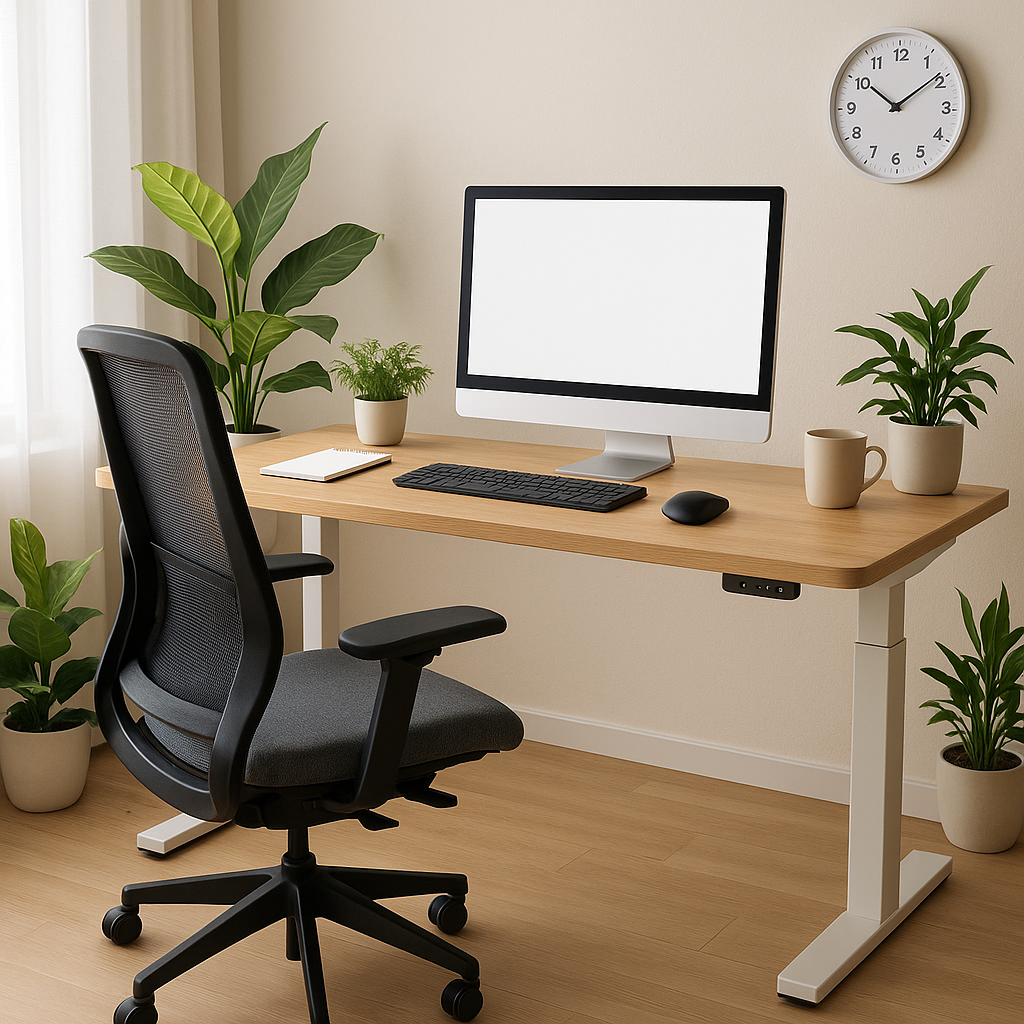
Keyboard position determines shoulder, elbow, and wrist angles during the majority of desk work. Proper placement keeps shoulders relaxed, elbows near the body at approximately 90 degrees, and wrists straight rather than bent.
The keyboard should sit directly in front of the user, not angled to one side, at a height allowing forearms to remain parallel to the floor. Wrists should float above the keyboard rather than resting on the desk surface or wrist pad during active typing. Wrist rests serve as supports during breaks from typing, not as platforms for the wrists while typing.
Mouse placement follows similar principles—positioned beside the keyboard at the same height, close enough to reach without extending the arm or rotating the shoulder. Frequent mouse users benefit from learning keyboard shortcuts to reduce repetitive clicking and dragging motions.
Chair Adjustment and Lumbar Support
Office chairs include multiple adjustment mechanisms for good reason. Default settings rarely match individual body dimensions or work requirements. Taking time to properly adjust each component prevents back pain and circulation problems.
Critical adjustments include:
- Seat height: Feet flat on floor or footrest with thighs parallel to ground
- Seat depth: 2-3 inches of space between seat edge and back of knees
- Backrest position: Lumbar support contacts the natural curve of lower back
- Armrest height: Forearms rest lightly when shoulders are relaxed
- Backrest angle: Slight recline (100-110 degrees) reduces disc pressure
Budget chairs lack some adjustments, but seat height and backrest position remain essential. Towels or cushions can provide makeshift lumbar support when built-in mechanisms are inadequate.
Desk Height and Work Surface Organization
Desk height affects everything resting on it. Standard desks at 29-30 inches suit average-height users but may be too high or low for others. Adjustable-height desks solve this problem, though fixed desks can be modified with keyboard trays or desk risers.
Work surface organization reduces reaching and twisting. Frequently used items belong within easy reach—the primary zone extending from the body without leaning or stretching. Less frequently needed materials can occupy secondary zones requiring some reach.
Creating an Ergonomic Home Office on Any Budget
Remote work has shifted responsibility for workspace setup from employers to individual workers. Home offices range from dedicated rooms with proper furniture to makeshift arrangements at kitchen tables or couches. Budget constraints and space limitations create additional challenges beyond traditional office environments.
Essential Low-Cost Improvements
Ergonomic benefits don’t require expensive specialized furniture. Strategic use of common household items and affordable accessories addresses most critical issues.
Budget-friendly solutions include:
- Monitor elevation: Stacked books or storage boxes raise laptop or monitor screens
- Lumbar support: Rolled towel or throw pillow behind lower back
- Footrest: Cardboard box, storage container, or thick book stack
- Document holder: Binder clip on monitor edge or angled cookbook stand
- Keyboard tray: Sliding drawer or pull-out shelf if desk is too high
- External peripherals: Separate keyboard and mouse for laptop users ($20-40)
These modifications cost little but deliver significant ergonomic improvements. A $15 external keyboard and $20 mouse transform laptop ergonomics more effectively than a $500 chair purchased for a laptop used on a coffee table.
Lighting and Environmental Factors
Screen glare and poor lighting cause eye strain, headaches, and awkward postures as workers tilt screens or crane necks to see clearly. Natural light provides ideal illumination but creates glare problems when positioned behind monitors or shining directly on screens.
Position monitors perpendicular to windows when possible. Adjust screen brightness to match ambient room lighting—screens shouldn’t appear as bright light sources in dim rooms or washed-out surfaces in bright spaces. Task lighting should illuminate documents or keyboards without creating screen reflections.
Room temperature and air quality affect comfort and concentration. Cold environments cause muscle tension and hunched postures. Dry air from heating or air conditioning contributes to eye irritation. Simple interventions like space heaters, fans, or humidifiers address these issues inexpensively.
Negotiating Workplace Equipment and Accommodations
Employers bear legal and financial responsibilities for providing safe work environments, including ergonomically appropriate equipment. Many organizations offer stipends, equipment reimbursement, or direct provision of office furniture for remote workers.
How to Request Ergonomic Equipment
Formal accommodation requests work better than casual mentions. Document specific problems, explain how equipment would address them, and reference productivity or health concerns. Requests framed as enabling better work performance succeed more often than those positioned as personal preferences.
Effective request elements include:
- Description of current setup and identified ergonomic issues
- Specific equipment or modifications requested
- Explanation of how changes would improve work capability
- Medical documentation if requesting accommodations under disability laws
- Cost information showing reasonable expense
Small employers or tight budgets may approve incremental requests more readily than comprehensive overhauls. Requesting a monitor stand before an adjustable desk, or an external keyboard before a full workstation upgrade, demonstrates reasonable accommodation efforts.
Developing Healthy Work Habits
Perfect ergonomic setup only provides partial protection. How workers use that setup throughout the day matters equally. Sustained static positions cause problems regardless of how well-optimized those positions may be.
Movement and Position Changes
The human body tolerates variety better than perfection held indefinitely. The best sitting posture maintained for three hours straight still causes problems. Movement and position changes prevent the accumulation of static stress.
Effective movement strategies include:
- Stand and walk briefly every 30-60 minutes
- Shift sitting position regularly throughout the day
- Perform different tasks requiring different postures
- Take actual breaks away from the desk rather than scrolling phones while seated
- Use standing desk positions intermittently if available
- Combine movement with routine tasks like phone calls or reading
These micro-breaks don’t require dedicated exercise time. Walking to refill water, standing while thinking through problems, or stretching during file downloads incorporates movement into existing work patterns.
Eye Care and Screen Time Management
Digital eye strain affects the majority of screen-heavy workers. Symptoms include dry eyes, blurred vision, headaches, and difficulty focusing. Unlike musculoskeletal issues, eye strain often resolves quickly with proper habits.
The 20-20-20 rule provides practical guidance: Every 20 minutes, look at something 20 feet away for 20 seconds. This simple practice relaxes eye focusing muscles and encourages blinking, which prevents dry eyes.
Screen time reduction strategies include:
- Print documents for detailed review when feasible
- Use phone calls instead of video meetings when cameras aren’t necessary
- Adjust screen color temperature warmer in evenings
- Ensure prescription glasses or contacts are current
- Consider computer-specific glasses if wearing progressive lenses
Long-Term Career Impact
Workplace injuries don’t always involve dramatic accidents or workers’ compensation claims. Chronic conditions developed from poor ergonomics create subtle but significant career limitations that compound over decades.
Productivity and Performance Effects
Pain distracts. Chronic discomfort reduces focus, slows work pace, and increases error rates. Workers compensating for wrist pain by awkward typing, or neck issues by uncomfortable head positions, cannot perform at full capability. These subtle degradations affect performance reviews, project assignments, and advancement opportunities.
Extended leaves for surgery or recovery interrupt career momentum. Time away affects project involvement, skill development, and visibility for promotions. Recovery periods may limit physical capabilities for months, reducing productivity even after returning to work.
Financial Implications
Medical treatment costs money even with insurance coverage. Copays, deductibles, and uncovered services add up across multiple provider visits, imaging studies, physical therapy sessions, and potential procedures. Lost wages during recovery periods create additional financial stress.
Chronic conditions requiring ongoing management impose lifetime costs. Recurring physical therapy, pain management, assistive devices, and medication expenses continue for years or decades. Prevention through proper ergonomics costs far less than treating established conditions.
Building Sustainable Work Practices
Career longevity requires viewing ergonomics as ongoing maintenance rather than one-time setup. Bodies change, work demands shift, and new environments require new adaptations. Workers who develop awareness of their physical responses to work activities and make appropriate adjustments throughout their careers avoid the accumulation of damage that forces early retirement or career changes.
Ergonomic consciousness becomes a professional skill as valuable as technical competencies. The ability to recognize risk factors, implement effective solutions, and maintain healthy work habits contributes to sustained high performance across multi-decade careers. Investing attention in workspace setup and work habits today prevents the career limitations that result from chronic pain conditions tomorrow.
Proper ergonomics isn’t complicated or expensive, but it does require deliberate attention that most workers never receive during standard onboarding. Taking responsibility for workspace setup and work habits protects the physical capability that enables long, productive careers regardless of industry or role.
Enjoyed this article?
Subscribe to Professor Simon's weekly newsletter for practical insights, career guidance, and leadership lessons delivered every Friday.
A confirmation email will be sent. If you don't receive it, please check your spam or junk folder.
No spam. Unsubscribe anytime.
Prefer to Listen?
Listen to Professor Simon’s IT & Cybersecurity Podcast for practical conversations about cybersecurity careers, certifications, security leadership, and real-world lessons from the field.
Listen on Spotify